- 1
Export a GEDCOM file from your current program
Every genealogy site has an export option, usually under the tree's settings or the Tools menu. Look for Export tree, Download GEDCOM or Share, then GEDCOM. You get a file ending in .ged.
On Ancestry it is under Trees, Tree Settings, Export tree. On MyHeritage it is under Family Tree, Manage trees, Export to GEDCOM. On FamilySearch, use a partner program such as RootsMagic to download your part of the shared tree.
- 2
Drop the file into the GEDCOM viewer
Open the free GEDCOM viewer and drop your .ged file onto the upload box, or click it to choose the file. Nothing is installed, and you do not need an account to view your tree.
Drop in a .ged file from any genealogy program. - 3
Give it a few seconds
The viewer reads your file, maps the families and works out the generations, then opens your tree by itself. There is nothing else to click.
Files with more than 60 people ask first: sign in to import everyone, or carry on with the 60 people closest to the first person in the file.
Reading the file and building the tree. - 4
Explore your imported tree
Your tree opens with every generation laid out. Life facts, residences, occupations, notes and source citations from the file are kept on each person, not just names and dates.
Sign in to save it to your account. From then on you can edit it, add photos and stories, and invite relatives.
The tree, built from the file, ready to explore. - 5
Have a spreadsheet instead?
In a saved tree, the Import button above the tree takes a CSV or JSON file. Download one of the templates in that window, fill it in, and upload it. Add the relationship columns and the tree is rebuilt from the file too.
Bulk-add people from a spreadsheet. - 6
Take your tree with you any time
Export opens a list of formats. GEDCOM gives you a standard .ged file with everything in it, including facts and sources, to open in any other program. Your family history is never locked in.
Export as GEDCOM whenever you like.
Common questions
Is my GEDCOM file private?+−
Yes. The file is only used to build your tree. It is not published anywhere, and your tree stays private unless you choose to share it.
Which GEDCOM versions work?+−
Standard GEDCOM 5.5 and 5.5.1 files, which is what Ancestry, MyHeritage, RootsMagic, Family Tree Maker, Gramps, Legacy and most others export.
Will my sources and notes come across?+−
Yes. Facts, notes and source citations are imported onto each person, and exporting gives them back, so moving your tree here costs you nothing.
Can I turn the imported tree into a PDF?+−
Yes. Use Export and choose PDF for a printable copy, or PNG for an image.
Related guides
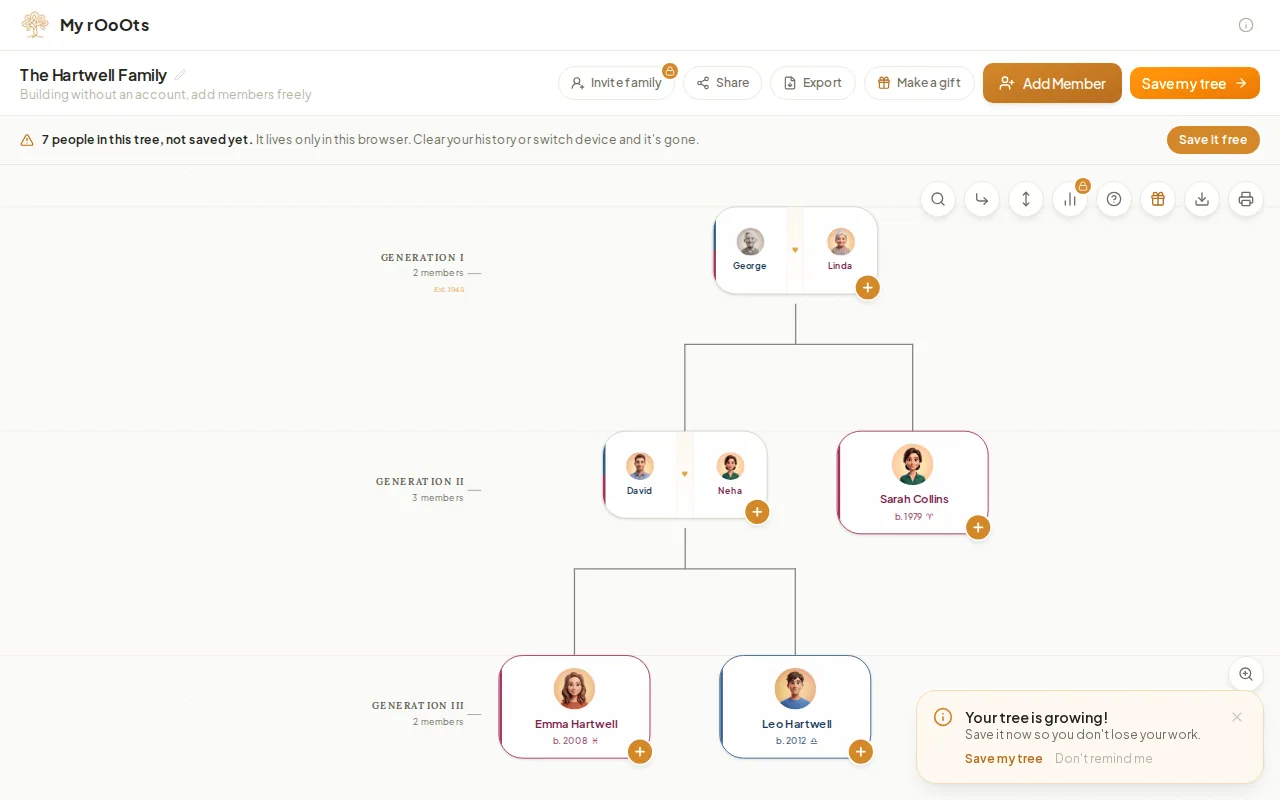
Create your family tree
Start a family tree in your browser in under a minute, with no account and no email. Add yourself, then parents, partners and children, and save it free.
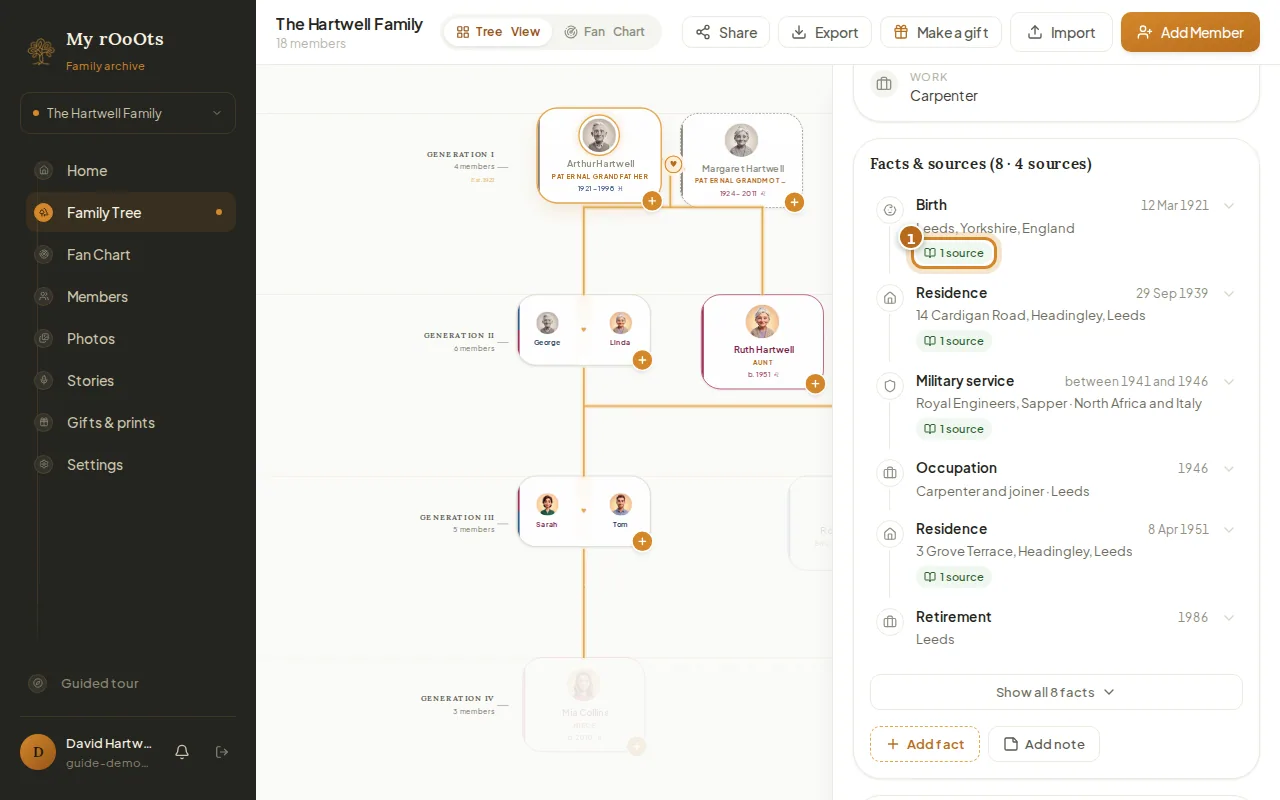
Facts and sources
Build a timeline of each person's life (where they lived, worked and served) and back each fact with a source like a census, certificate or family bible.
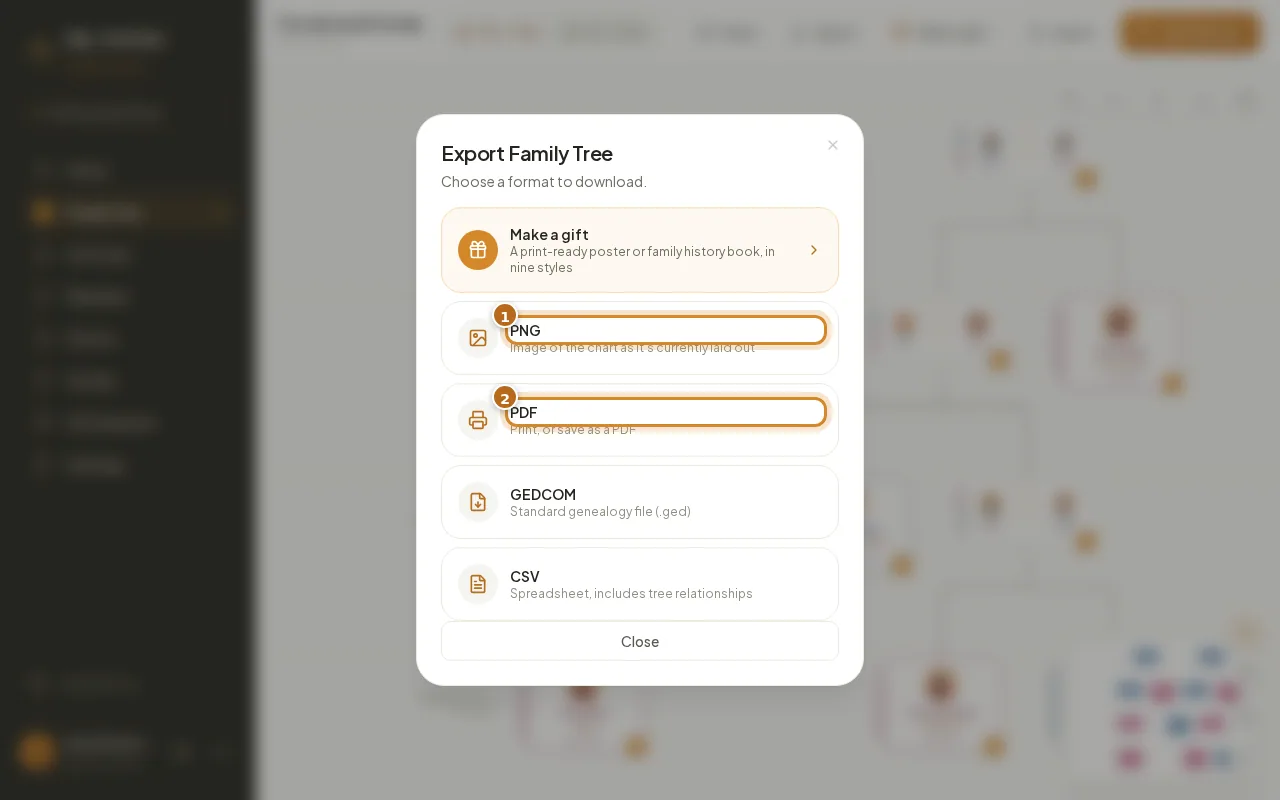
Download and print
Export your family tree as a PNG image, a printable PDF, a GEDCOM file or a CSV spreadsheet, in a couple of clicks.
Screenshots show a made-up example family. Last updated 23 September 2026.