- 1
Open someone's profile
Click a person's card on the tree. On a couple's card, the first click opens the couple and highlights their line, and a second click on one of them opens their profile.
On a phone, tap the card and choose View profile. The profile opens full screen; on a computer it opens as a panel on the right.
A profile, with Edit member at the top. - 2
Press Edit member and fill in the details
Change their name, gender, date of birth, and whether they are living. Add a photo, native place, occupation, a short bio and, for someone who has passed, the date of passing and a tribute in the family's own words.
Only know the year someone was born? Tick the year-only box and the tree shows just the year.
Everything about a person, in one form. - 3
See their full page
Each person also has their own page, reached from Members, with their story, relatives, facts, photos and stories in one place. For someone who has passed, it becomes a memorial page.
A full page for every person. - 4
Find anyone in the Members list
Members shows everyone on the tree by generation, as cards or a list. Search by name, place or occupation, or filter to living or deceased.
Everyone, grouped by generation.
Common questions
Who can see contact details like phone and email?+−
Only people you have given access to your tree. Contact details are never shown on public pages.
Can I set someone as the centre of the tree?+−
Yes. Your own card is the starting point, and cards show how everyone is related to you.
Related guides
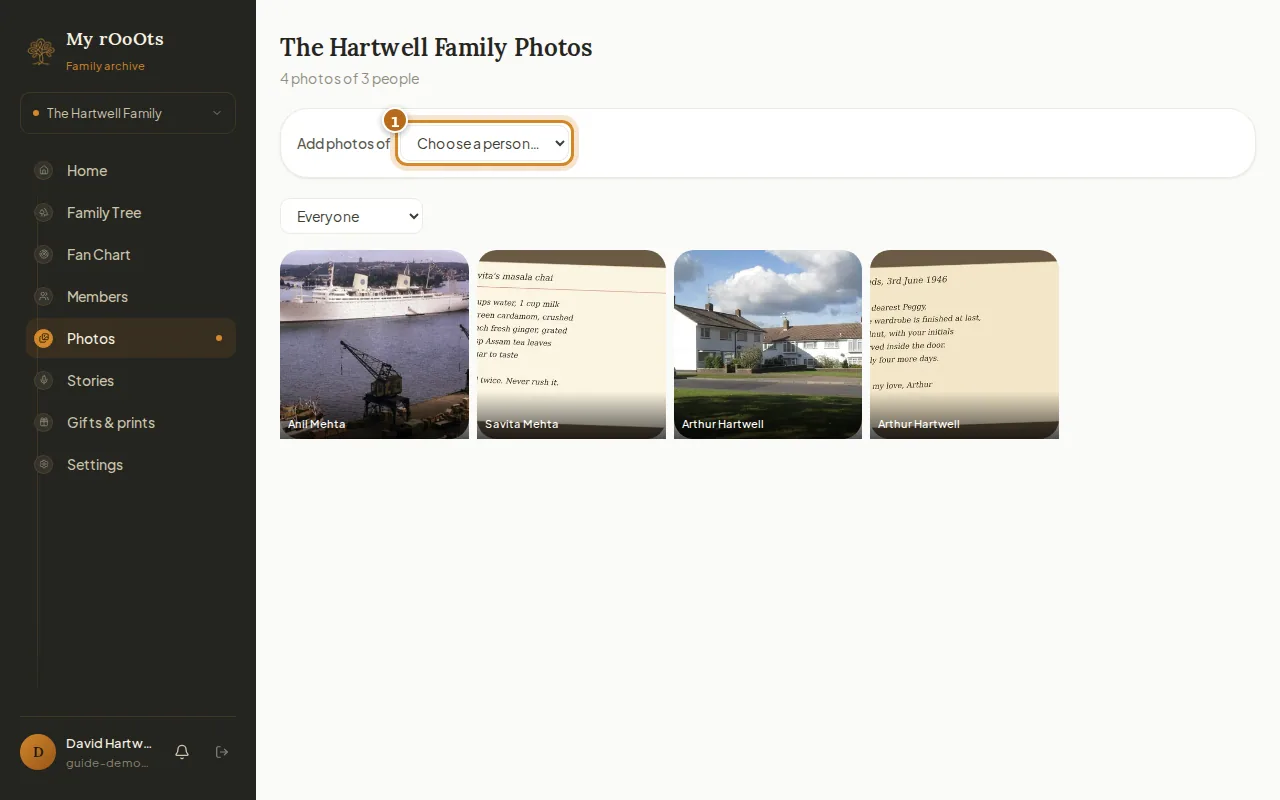
Add family photos
Give every person their own photo gallery, add captions and years, and browse the whole family album in one place. Works from your phone camera roll too.
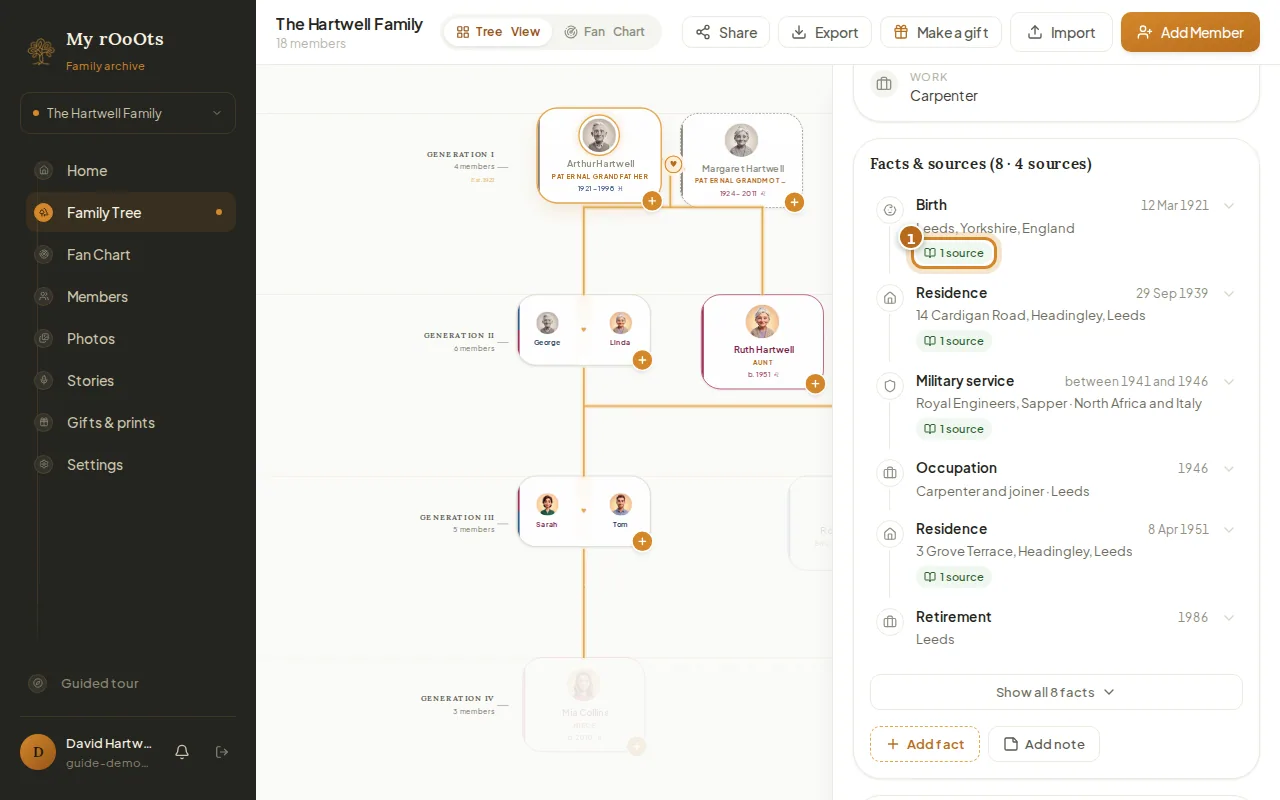
Facts and sources
Build a timeline of each person's life (where they lived, worked and served) and back each fact with a source like a census, certificate or family bible.
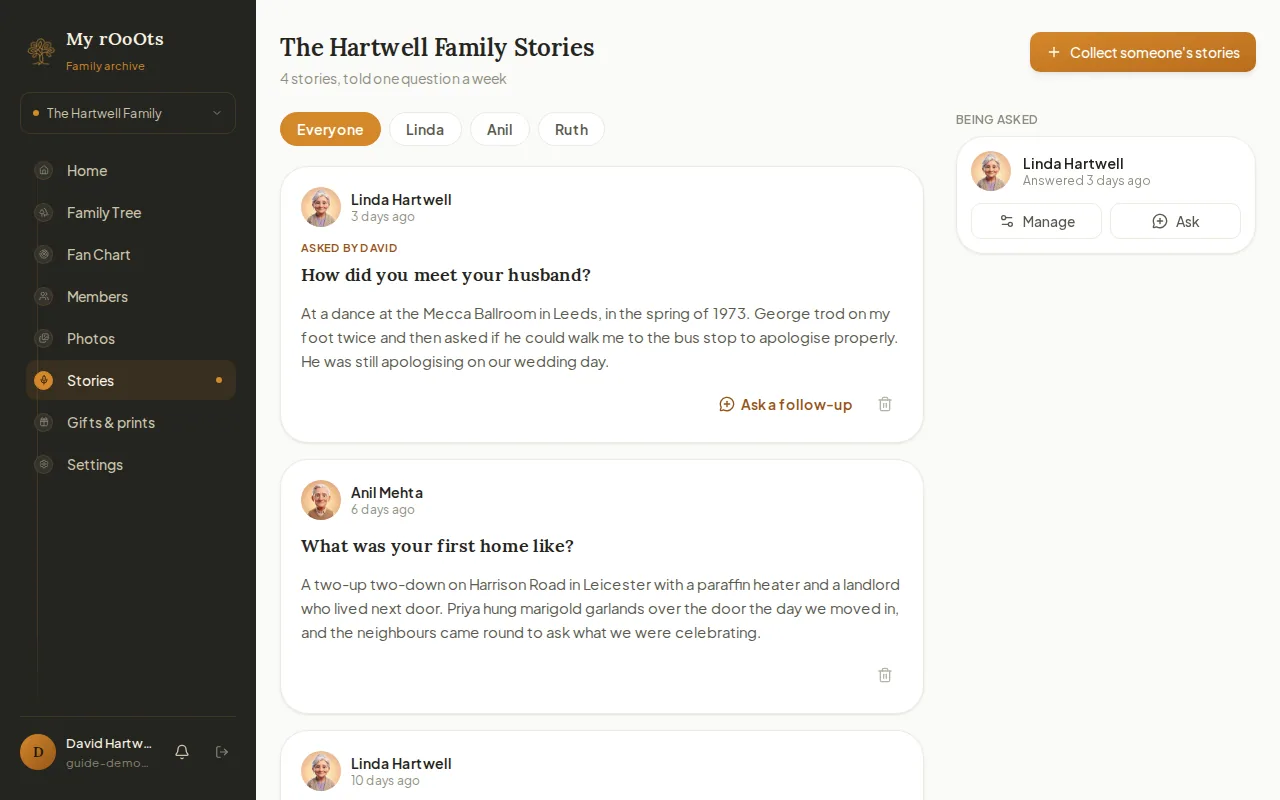
Record family stories
Send a relative one simple question a week. They answer by voice or text from their phone, with no app or account, and every answer is kept on your tree.
Screenshots show a made-up example family. Last updated 23 September 2026.