In this guide: 3 steps+−
- 1
Add photos from a profile
Open a person's profile and scroll to Photos. Press Add photos and choose one or more pictures from your computer or phone. Add a caption and the year it was taken so the family knows the story behind it.
Every profile has its own gallery. - 2
Browse the family album
Photos in the menu shows every picture in the tree. Pick a person in Add photos of to upload for them, or filter the album to one person.
The whole family's photos in one album. - 3
Open any photo full size
Tap a photo to see it full size with its caption and year. Use the arrows, or the arrow keys on a keyboard, to move through the album.
Full size, with the story underneath.
Common questions
What file types can I upload?+−
JPEG, PNG and WebP images. Large photos are resized automatically so the album stays fast.
Can I scan old photos with my phone?+−
Yes. Take a photo of the print with your phone camera and upload it straight from your camera roll.
Related guides
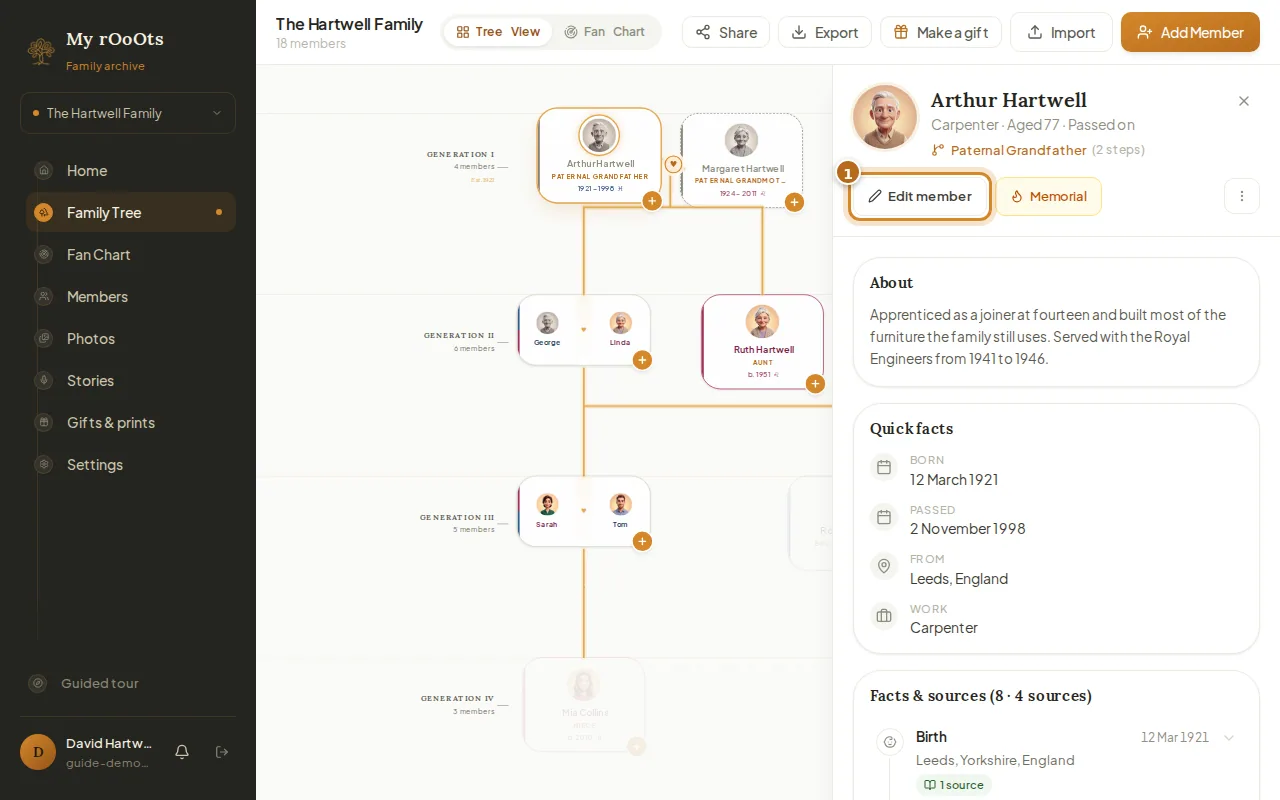
Edit a profile
Open anyone on your tree to add their photo, dates, birthplace, occupation, a short biography, or a tribute for someone who has passed.
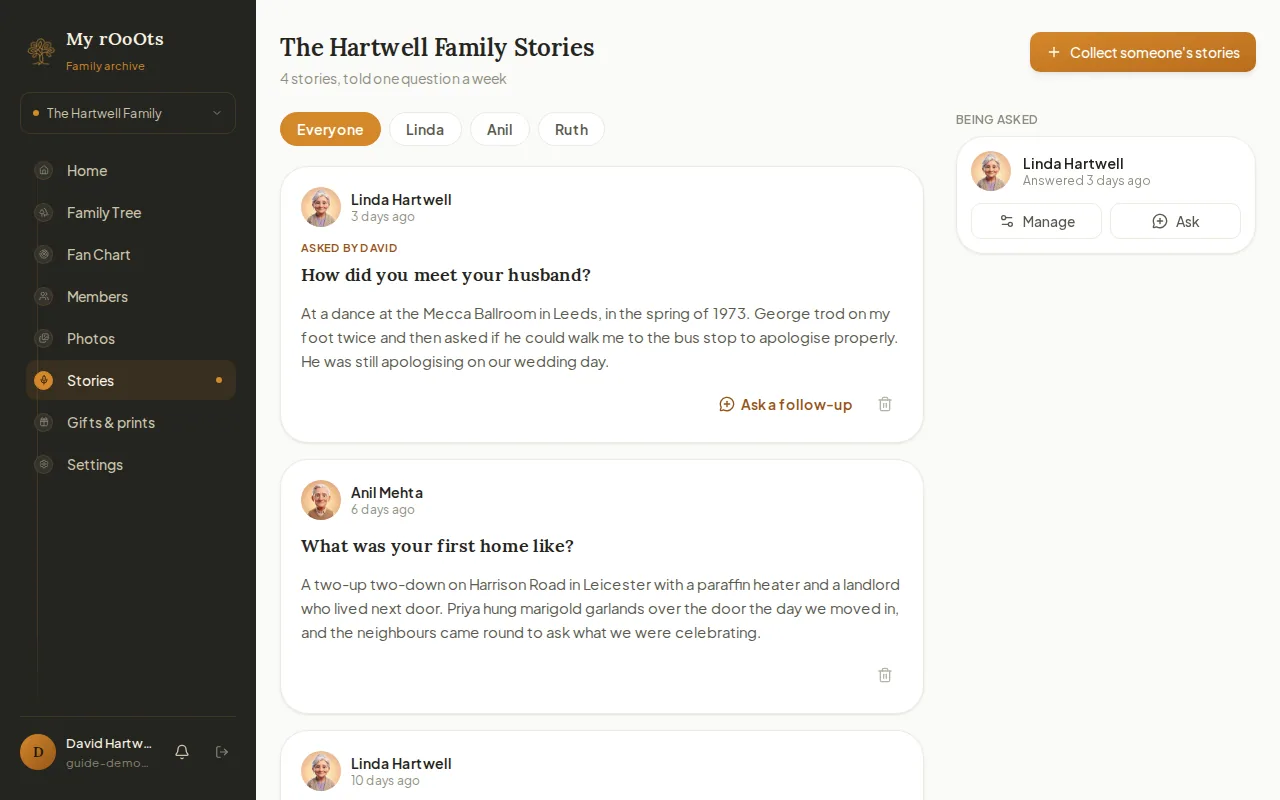
Record family stories
Send a relative one simple question a week. They answer by voice or text from their phone, with no app or account, and every answer is kept on your tree.
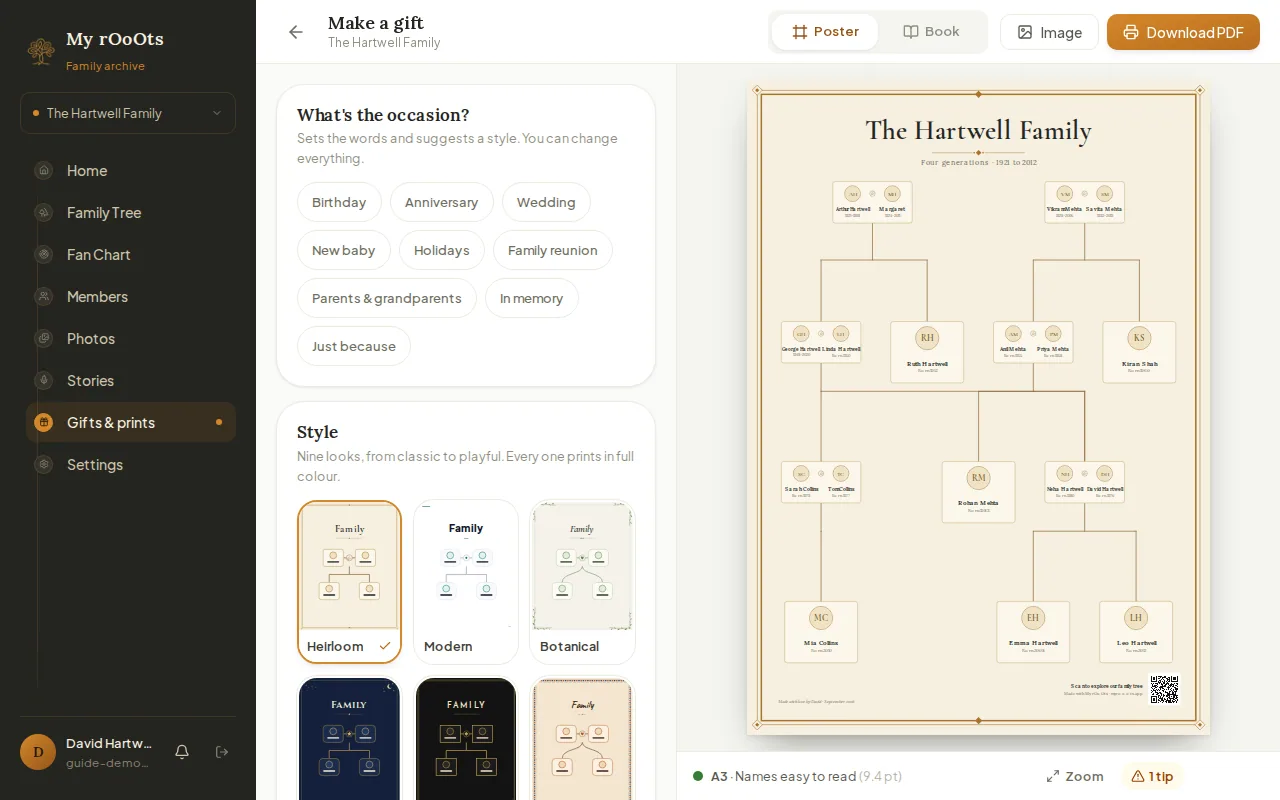
Poster or book
Turn your tree into a framed-print poster or a family history book in nine styles, for a birthday, anniversary, wedding or reunion. Download a print-ready PDF.
Screenshots show a made-up example family. Last updated 23 September 2026.