- 1
Get to know the toolbar
On a computer the buttons sit at the top right of the tree: search, connector lines (square or curved), layout (top to bottom or left to right), family insights, and a key to what the card colours mean. Zoom, fit and a mini map sit at the bottom right.
On a phone the same tools are in the bar at the bottom of the screen, with a List button at the top.
Search, lines, layout and insights. - 2
On a phone, try the list view
Press List to see the family as a simple list you can scroll and tap through, then go back to the tree whenever you like. It is often the easiest way around a big tree on a small screen.
Phone toolbar, with List at the top. - 3
Search for anyone
Press search and start typing a name. The tree jumps to the person you pick and highlights them.
Type a name to jump straight to them. - 4
See the family at a glance
Family insights shows how many people and generations are on the tree, the oldest and youngest living members, and what is still missing, like photos or birth dates.
Family insights: what is there and what is missing.
Common questions
How big can a tree get?+−
Trees with over 10,000 people work. Large trees open focused around you, with branches you can expand as you go.
Can I change the tree from top-to-bottom to left-to-right?+−
Yes. Use the layout button in the toolbar.
Related guides
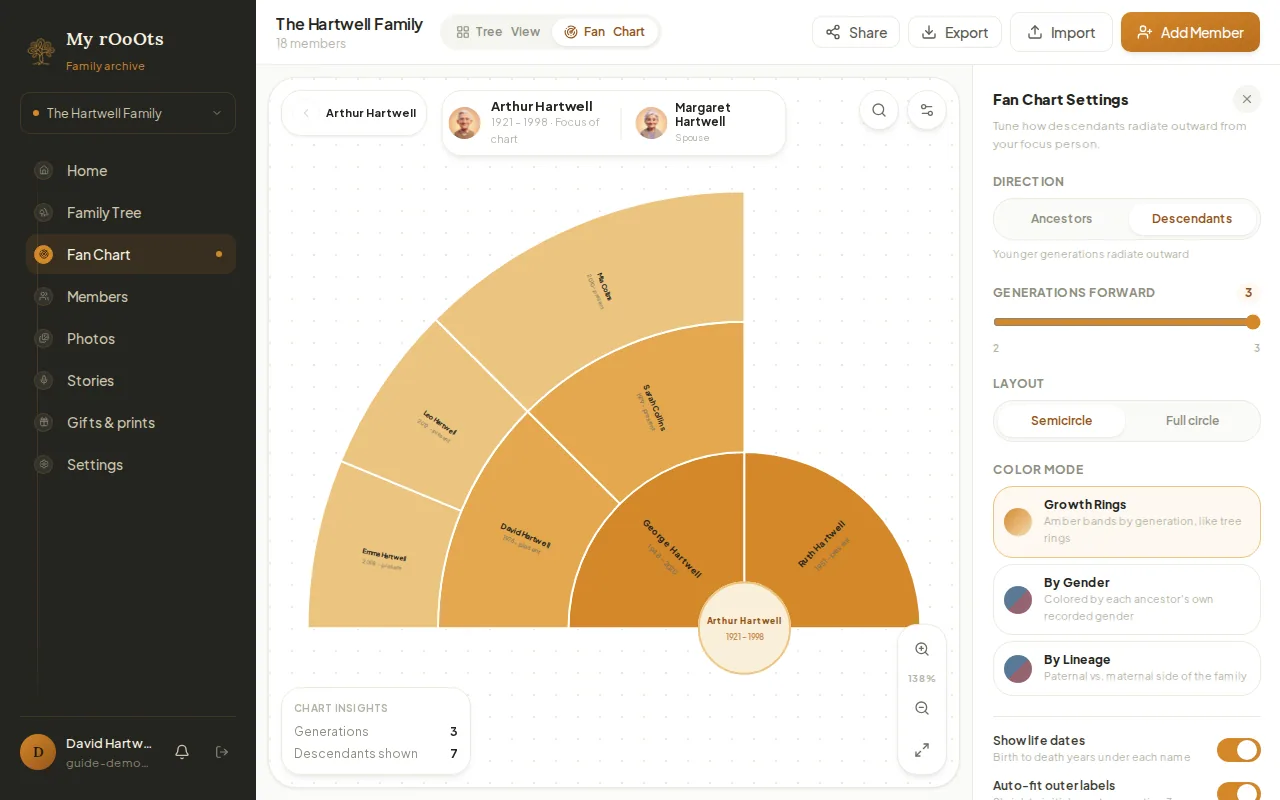
Fan chart
Switch your tree to a fan chart that shows ancestors or descendants radiating out from one person, as a half or full circle, coloured by generation, gender or lineage.
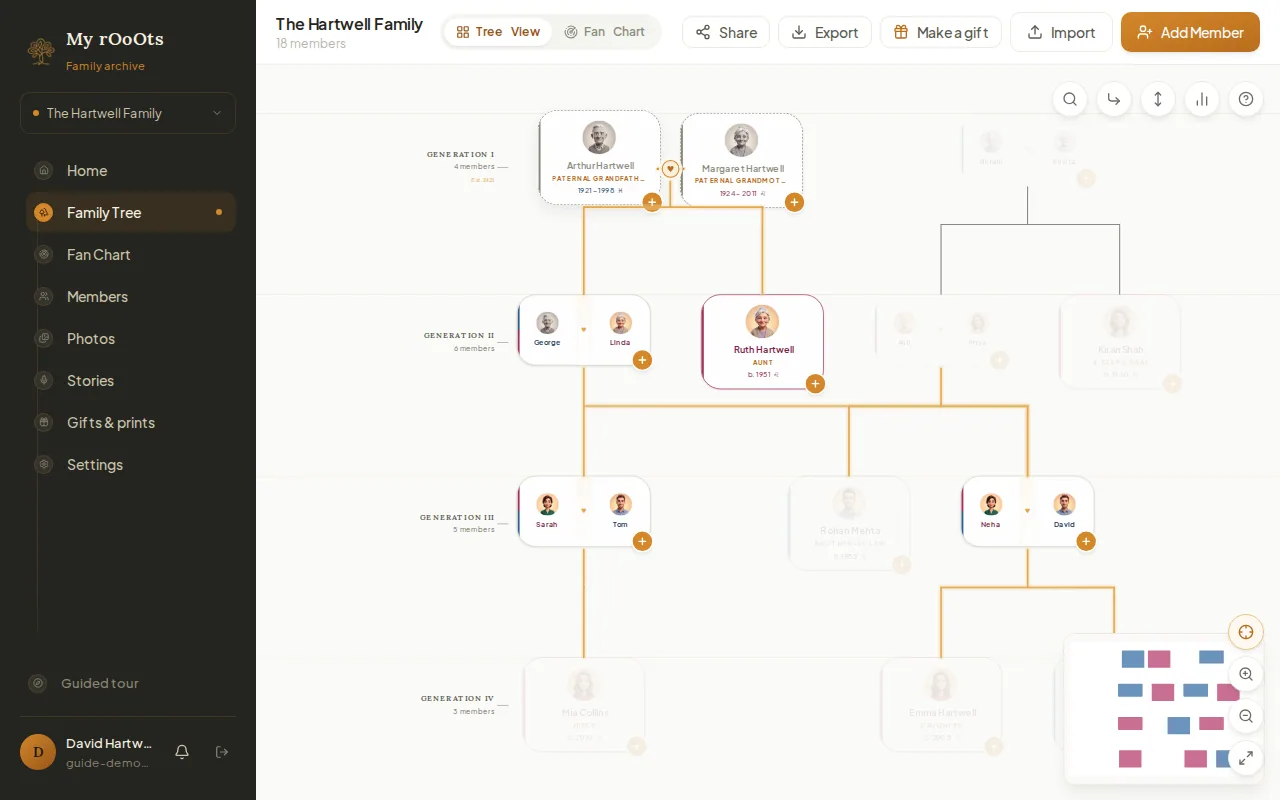
How are we related?
See each person's relationship to you on their card, trace the line between relatives on the tree, and look up the right word in 40 languages and traditions.
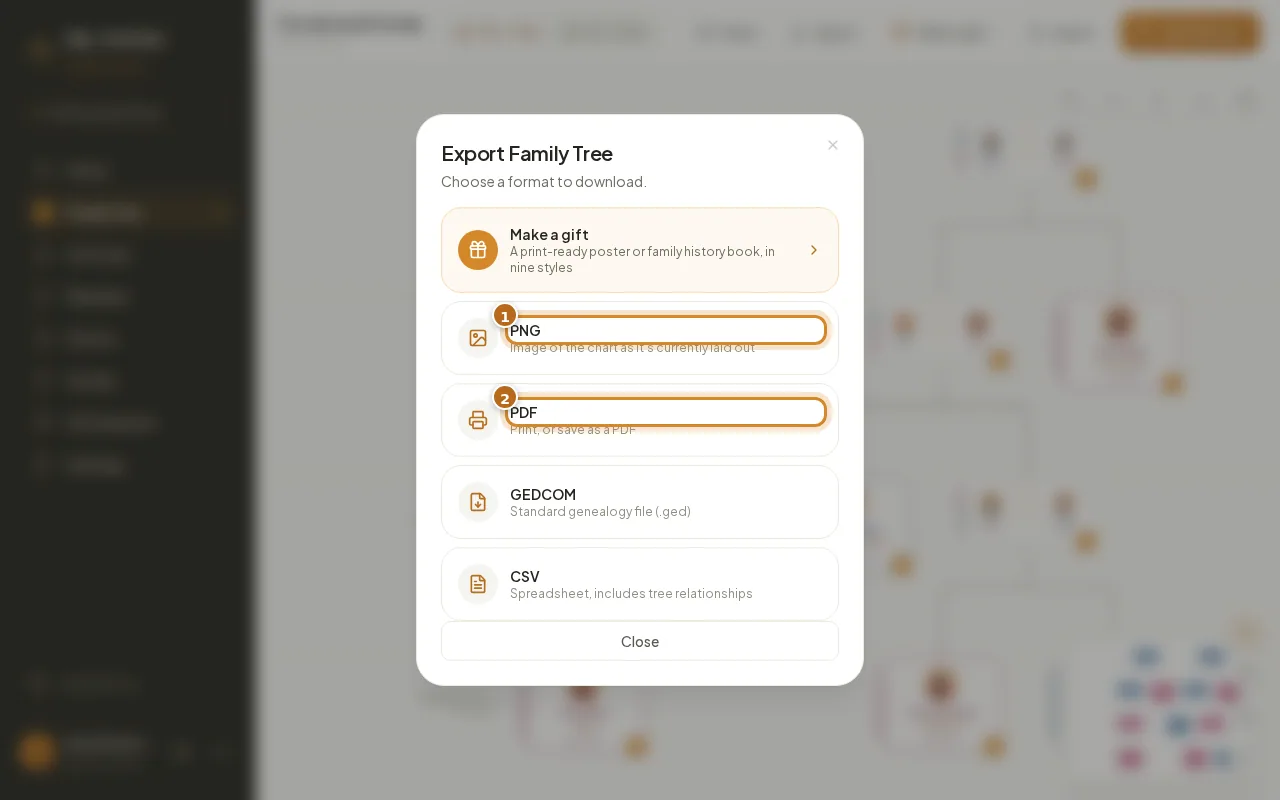
Download and print
Export your family tree as a PNG image, a printable PDF, a GEDCOM file or a CSV spreadsheet, in a couple of clicks.
Screenshots show a made-up example family. Last updated 23 September 2026.